> ## Documentation Index
> Fetch the complete documentation index at: https://docs.cookiechimp.com/docs/llms.txt
> Use this file to discover all available pages before exploring further.
# Google Tag Manager
> Set up a consent banner with Google Tag Manager and Google Consent Mode.
## How do I install the CookieChimp script?
You can install CookieChimp two ways. **Direct HTML is the recommended approach** — it guarantees CookieChimp loads before Google Tag Manager and any other scripts, so it can set consent defaults before any tag fires.
Add your website's CookieChimp JS snippet at the top of the `` tag in your HTML, **before** the Google Tag Manager script and any other scripts.
```html theme={null}
```
Replace `abc123` with your website's unique CookieChimp ID.
If you can't edit your site's HTML directly, you can install CookieChimp through GTM. Fire it from the **Consent Initialization - All Pages** trigger — this is the earliest trigger GTM exposes, so it gives CookieChimp the best chance of loading before other tags.
**This method does not guarantee strict ordering.** The Consent Initialization trigger controls when GTM **injects** the CookieChimp `
```
Replace `abc123` with your website's unique CookieChimp ID.
3. For the trigger, select **Consent Initialization - All Pages**.
4. Save the tag and **publish** your container.
You can reduce the async-download race by configuring **Tag Sequencing** on your other tags so they wait for the CookieChimp tag to finish, or by gating downstream tags on the `cookiechimp_consent_update` custom event (covered in the section below). Direct HTML remains the most reliable option.
## How do I block tags with Google Tag Manager?
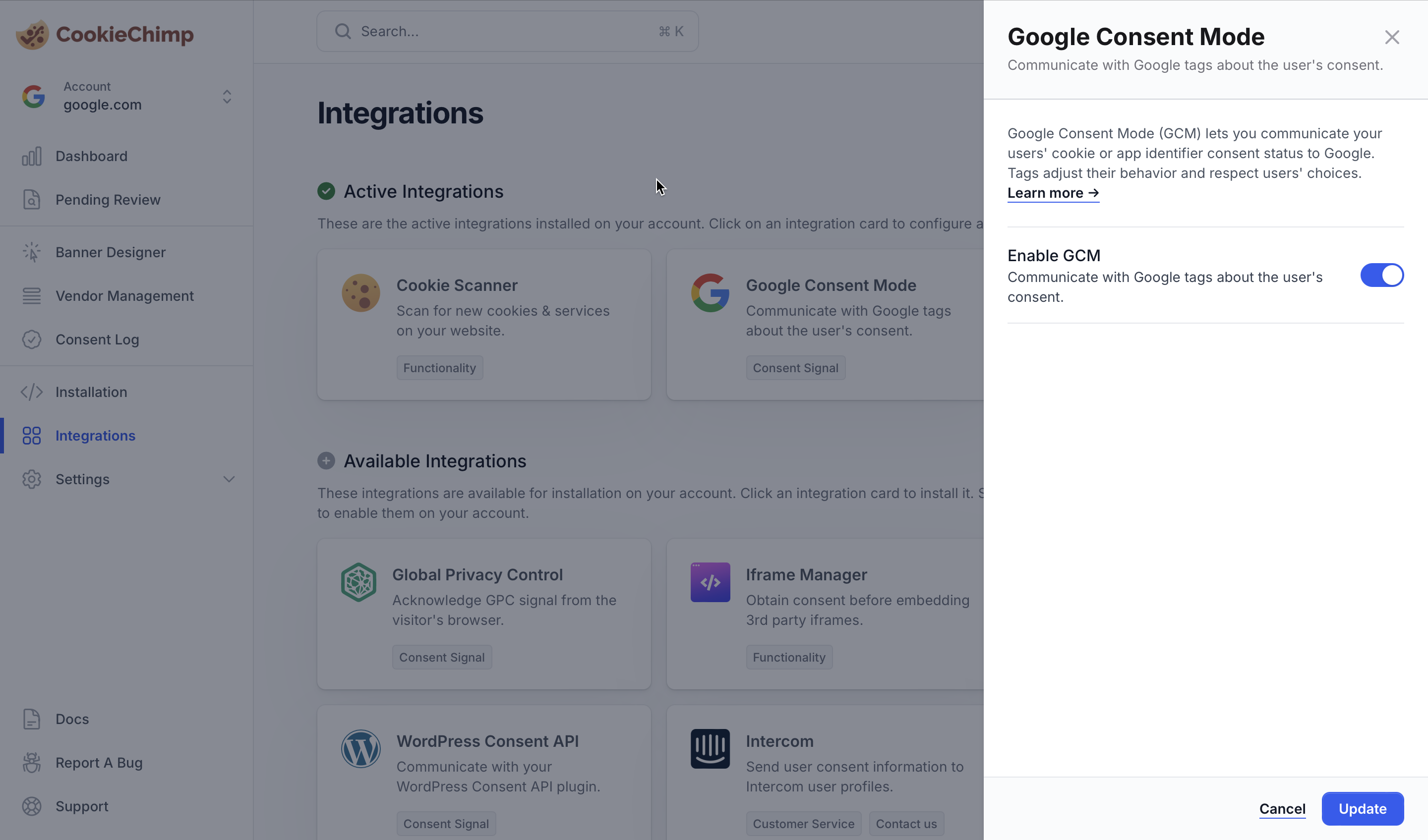
Navigate to "Integrations" from the sidebar and enable the Google Consent Mode integration.
 Create or update a tag and add an additional consent check so the tag only fires once the matching vendor has consent.
Navigate to "Advanced Settings" > "Consent Settings". Select "Require additional consent for tag to fire" and enter the name of the category or service that the tag needs to fire on.
Create or update a tag and add an additional consent check so the tag only fires once the matching vendor has consent.
Navigate to "Advanced Settings" > "Consent Settings". Select "Require additional consent for tag to fire" and enter the name of the category or service that the tag needs to fire on.
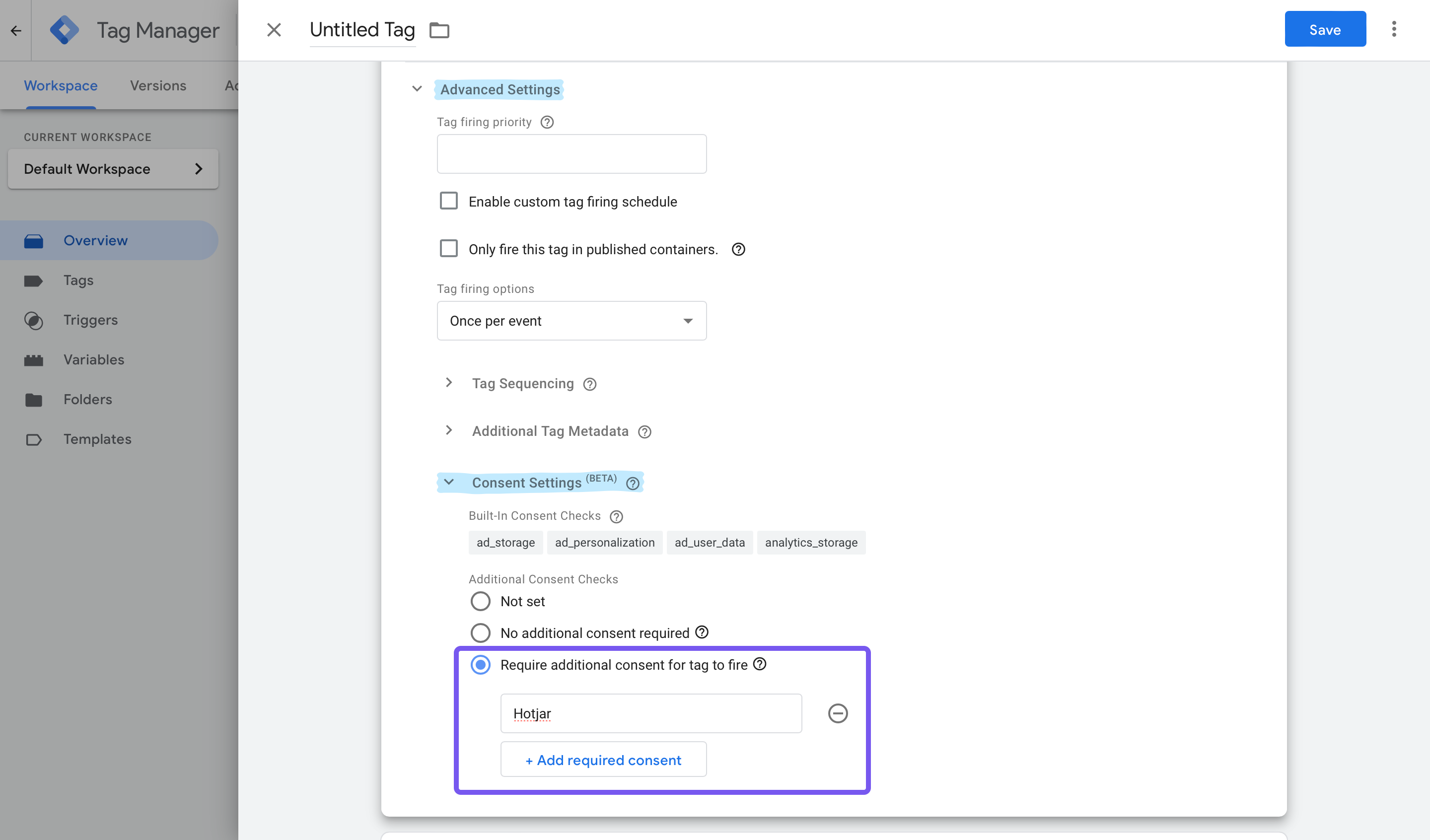 Enter the exact vendor name as it appears in your CookieChimp [Vendor Library](/features/vendor-management#what-are-vendors), e.g `Google Analytics`, `Hotjar`, or `Facebook Pixel`. CookieChimp sends the consent state of each vendor to Google, so the tag will only fire when that specific vendor has been granted consent in the banner.
This is the recommended approach because your visitors can opt in or out of individual vendors inside a category, and a tag should usually only fire when its own vendor is allowed, not just when the broader category has consent.
The vendor name must match the name configured in your CookieChimp Vendor Library exactly, including capitalisation and spacing.
If you'd rather scope the additional consent to a whole category (so the tag fires whenever any vendor in that category has consent), you can use one of the Google consent types that CookieChimp maps your categories to. For example `analytics_storage` for the `analytics` category. See [the mapping below](#how-does-cookiechimp-map-to-google-consent-types) for the full list.
This is required to listen for changes in consent state. This event will be triggered by CookieChimp on page load and when the user changes their consent settings.
Enter the exact vendor name as it appears in your CookieChimp [Vendor Library](/features/vendor-management#what-are-vendors), e.g `Google Analytics`, `Hotjar`, or `Facebook Pixel`. CookieChimp sends the consent state of each vendor to Google, so the tag will only fire when that specific vendor has been granted consent in the banner.
This is the recommended approach because your visitors can opt in or out of individual vendors inside a category, and a tag should usually only fire when its own vendor is allowed, not just when the broader category has consent.
The vendor name must match the name configured in your CookieChimp Vendor Library exactly, including capitalisation and spacing.
If you'd rather scope the additional consent to a whole category (so the tag fires whenever any vendor in that category has consent), you can use one of the Google consent types that CookieChimp maps your categories to. For example `analytics_storage` for the `analytics` category. See [the mapping below](#how-does-cookiechimp-map-to-google-consent-types) for the full list.
This is required to listen for changes in consent state. This event will be triggered by CookieChimp on page load and when the user changes their consent settings.
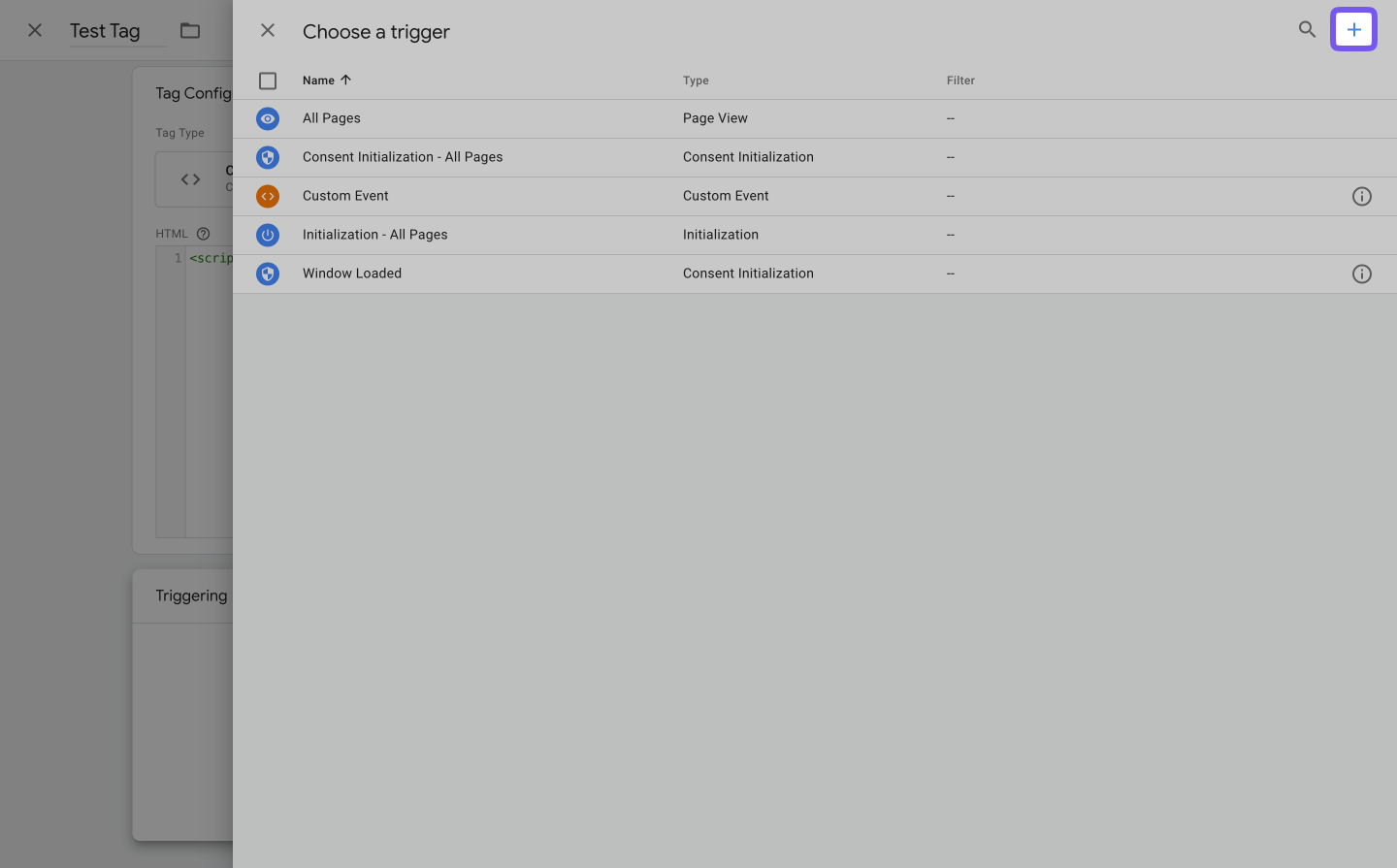 Choose "Custom Event"
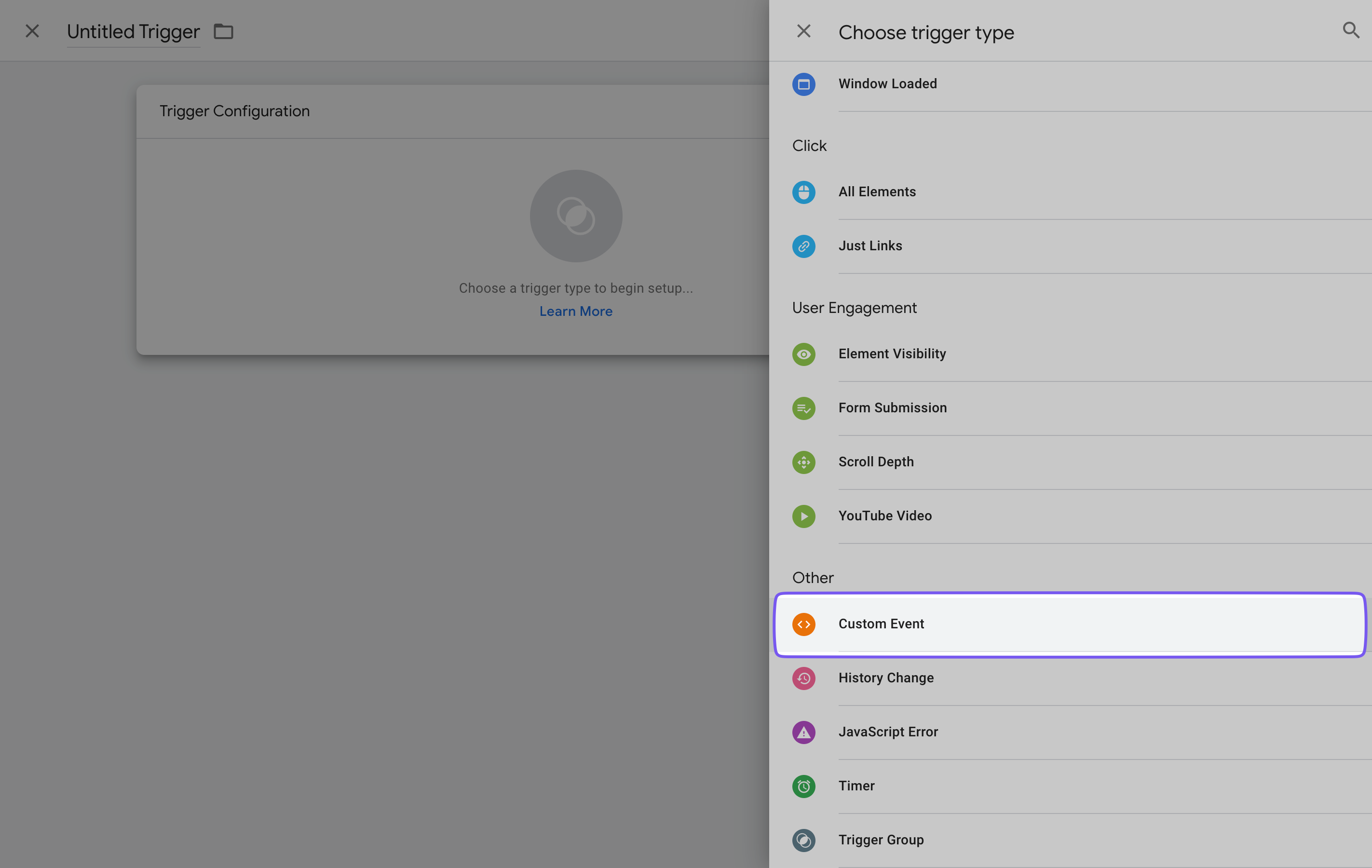 Set up the custom trigger with event name `cookiechimp_consent_update` and save the tag.
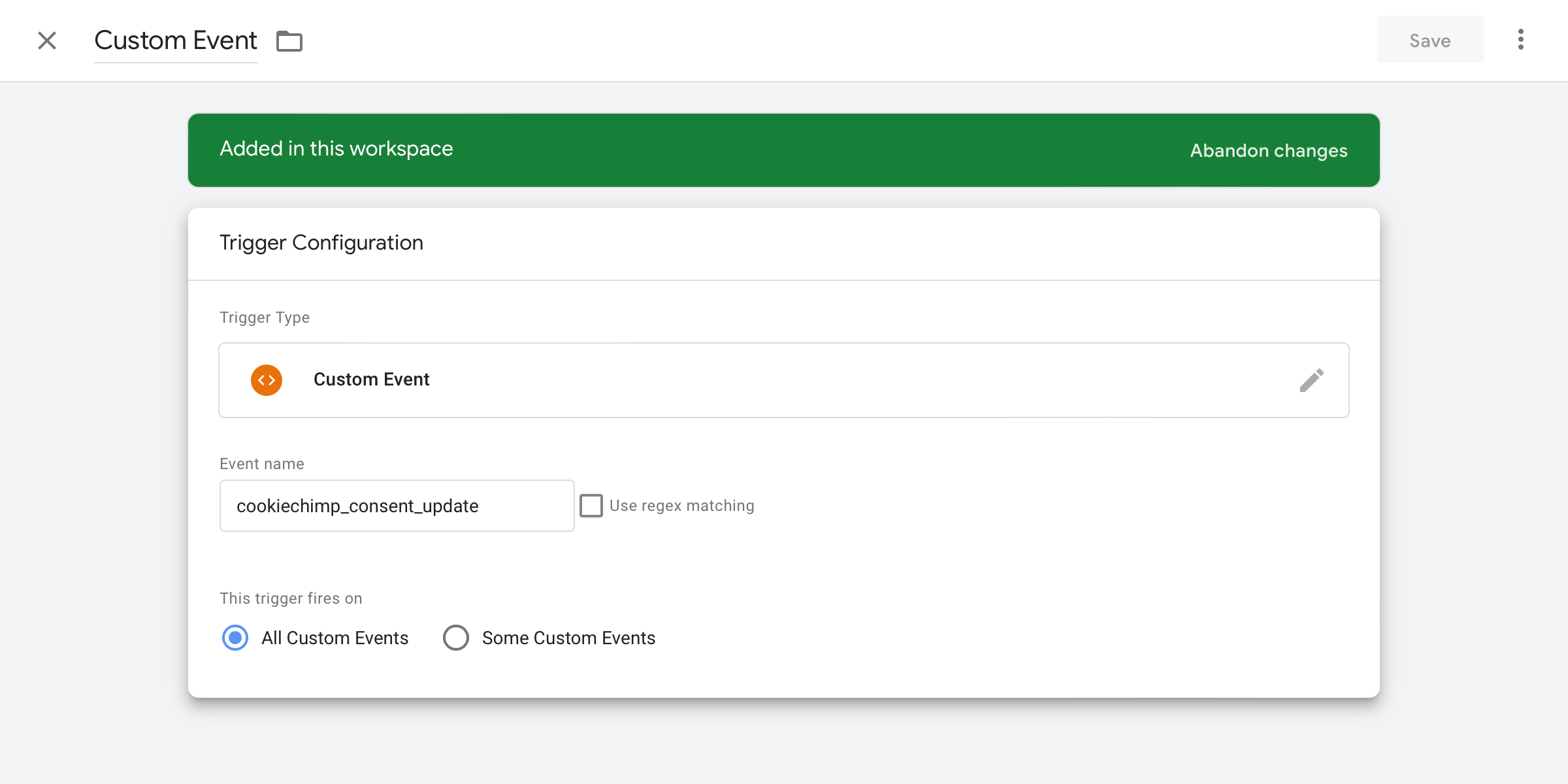 This tag is now set up and will only fire when the required consent is granted.
## How does CookieChimp map to Google consent types?
GTM supports 7 different default consent types. CookieChimp maps these Google consent types into the following categories:
| CookieChimp Category ID | Google Consent Type |
| ----------------------- | ------------------------------------------------ |
| essential | functionality\_storage, security\_storage |
| marketing | ad\_storage, ad\_user\_data, ad\_personalization |
| analytics | analytics\_storage |
| personalization | personalization\_storage |
These categories are setup by default. When a user opts-in to a consent category or a Google service in the category is consented to, the linked Google consent type will change from 'denied' to 'granted' and vice versa.
Apart from the default 7 consent types, we will also send the consent state of your services to Google. For example, when a user consents to a service named "Hotjar", the consent state for this service is updated as 'granted'. This is what allows you to use the vendor name directly in a tag's "Require additional consent for tag to fire" setting (the recommended approach in the [Add/Edit Tag](#how-do-i-block-tags-with-google-tag-manager) step), so the tag only fires when that specific vendor has been granted consent and not just the broader category.
This tag is now set up and will only fire when the required consent is granted.
## How does CookieChimp map to Google consent types?
GTM supports 7 different default consent types. CookieChimp maps these Google consent types into the following categories:
| CookieChimp Category ID | Google Consent Type |
| ----------------------- | ------------------------------------------------ |
| essential | functionality\_storage, security\_storage |
| marketing | ad\_storage, ad\_user\_data, ad\_personalization |
| analytics | analytics\_storage |
| personalization | personalization\_storage |
These categories are setup by default. When a user opts-in to a consent category or a Google service in the category is consented to, the linked Google consent type will change from 'denied' to 'granted' and vice versa.
Apart from the default 7 consent types, we will also send the consent state of your services to Google. For example, when a user consents to a service named "Hotjar", the consent state for this service is updated as 'granted'. This is what allows you to use the vendor name directly in a tag's "Require additional consent for tag to fire" setting (the recommended approach in the [Add/Edit Tag](#how-do-i-block-tags-with-google-tag-manager) step), so the tag only fires when that specific vendor has been granted consent and not just the broader category.