How does language detection work?
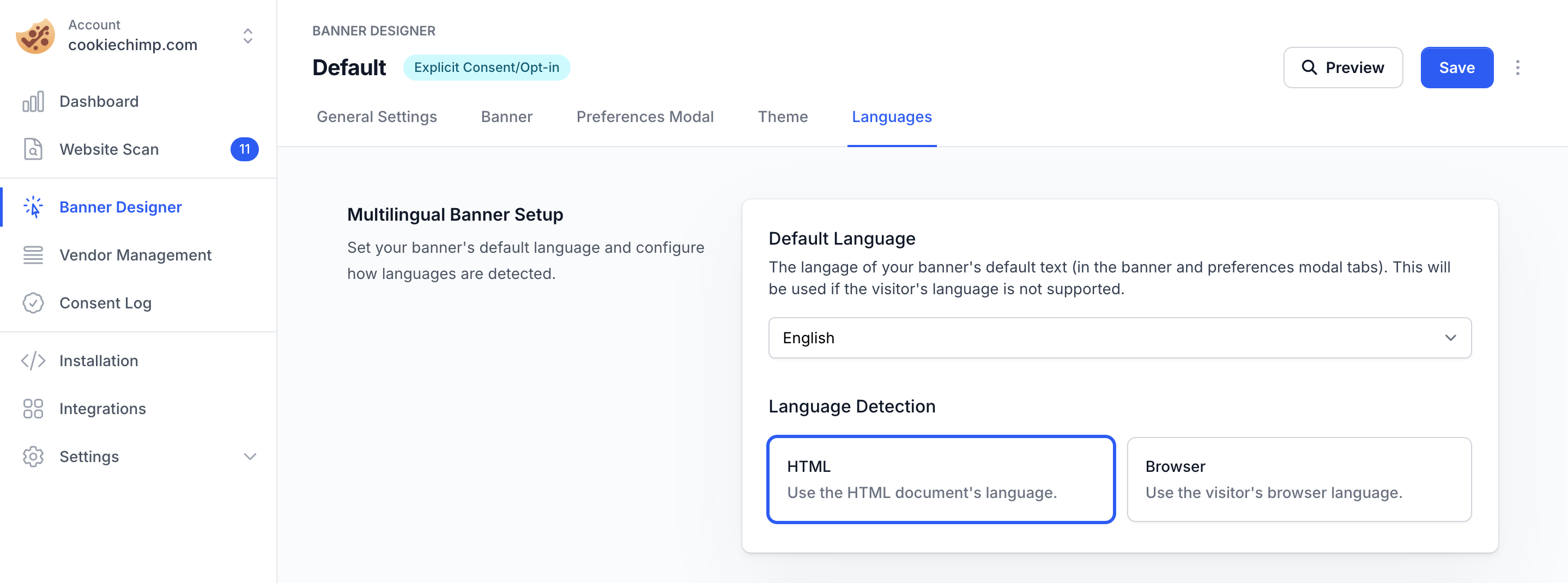
CookieChimp automatically detects the language to display your consent banner in. The detection method is configured in your banner settings and uses one of the following:- HTML document language — the lang attribute on the
<html>element (e.g.<html lang="fr">). - Browser language — the language set in the visitor’s browser preferences.
How do I override the detected language?
In some cases, you may want to display the banner in a language that differs from what is automatically detected. For example, your site might serve content in a language that doesn’t match the HTMLlang attribute or the visitor’s browser language.
CookieChimp resolves the display language using the following priority order:
window.CookieChimpLang— a global JavaScript variable you set before the CookieChimp script loads.data-langattribute on the<html>element.- The default detection method configured in your banner settings (HTML
langattribute or browser language).
Using window.CookieChimpLang
Add a script before the CookieChimp snippet to set the language:Using data-lang attribute
Add adata-lang attribute to your <html> tag:
The language value must be a valid ISO 639-1 language code (e.g.
en, fr, de, es) and you must have a translation available for that language in your banner settings.How do I translate the banner?
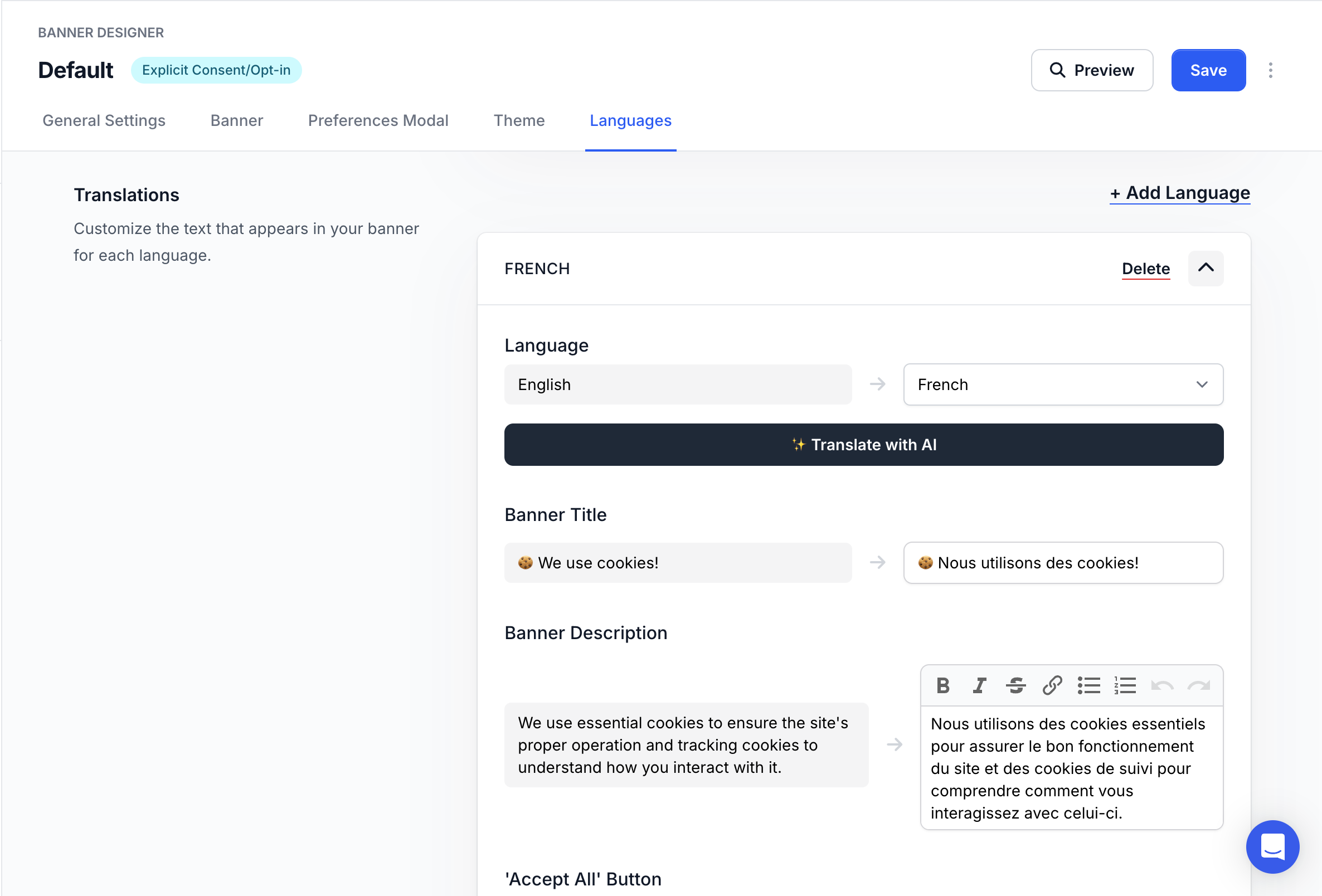
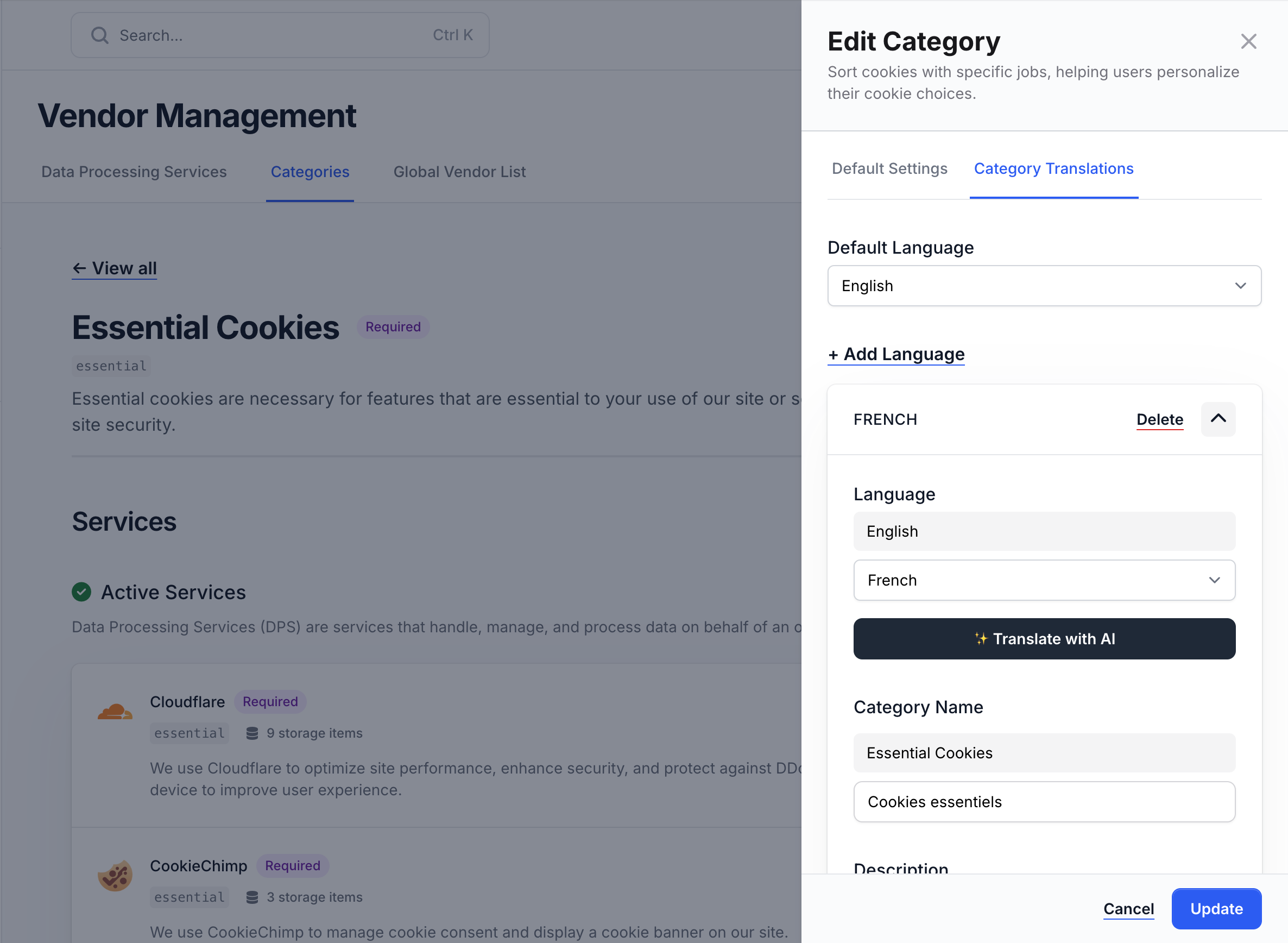
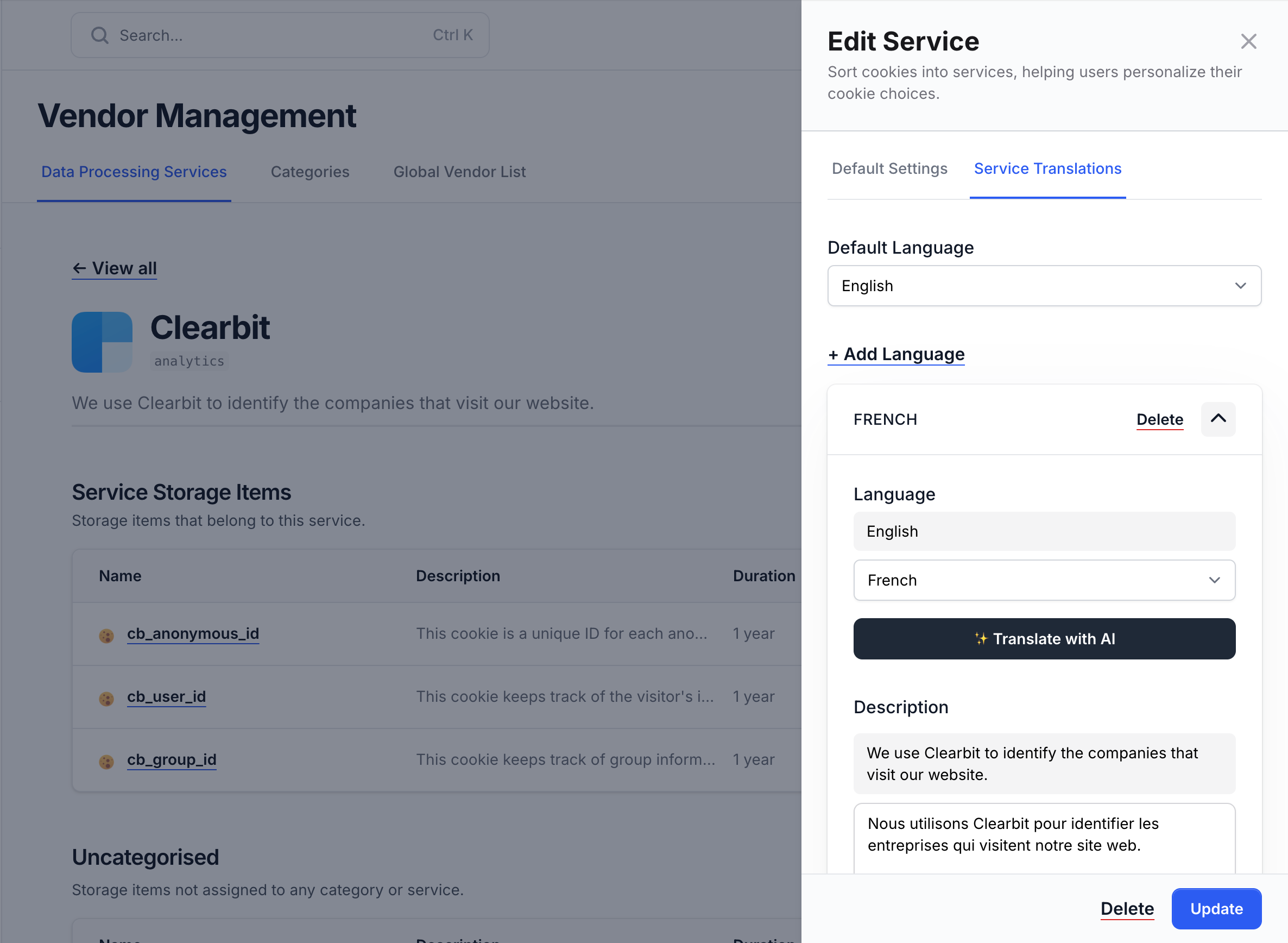
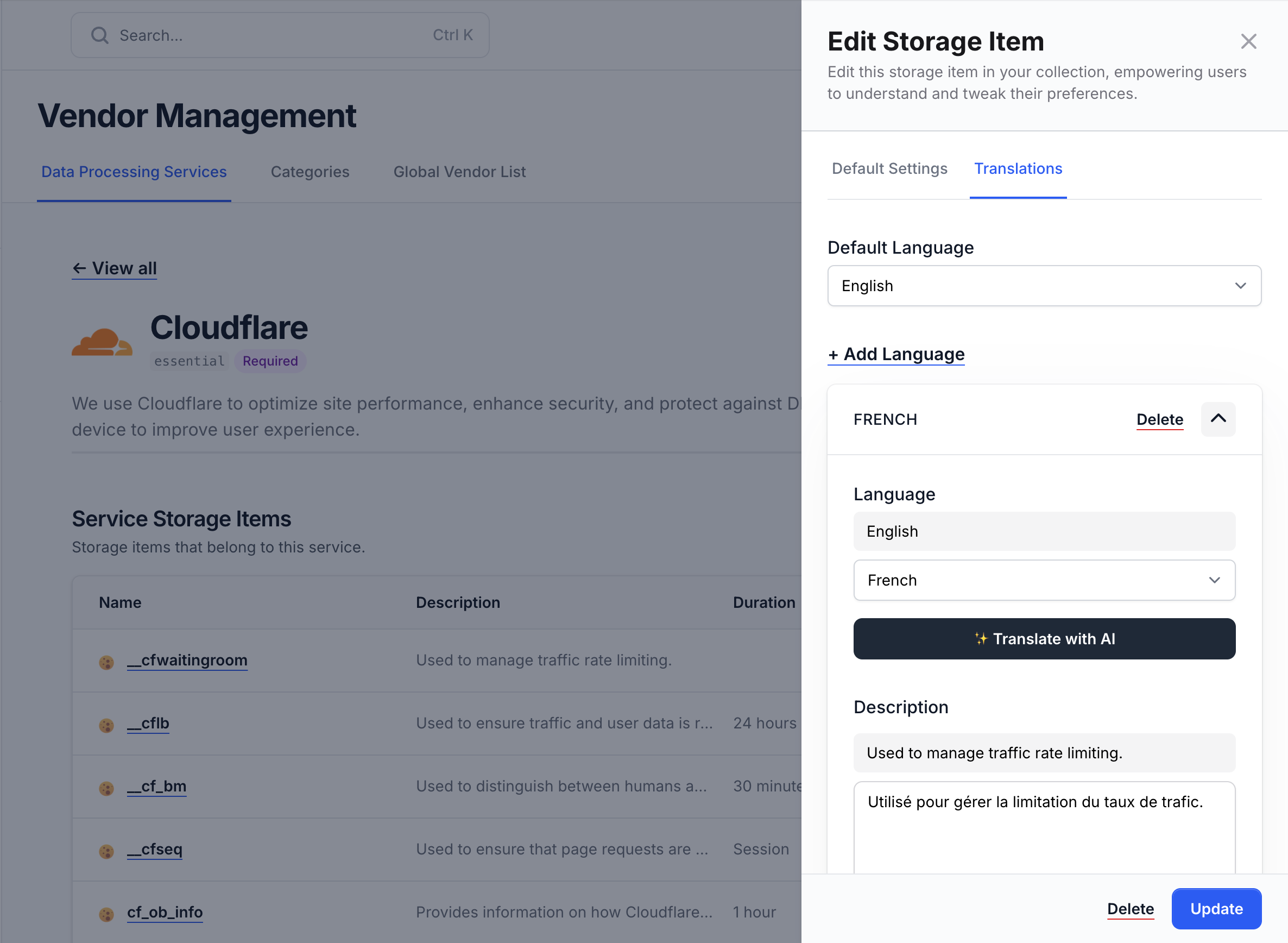
Consent banners can be translated into multiple languages. We offer AI auto translate for paid accounts to quickly translate into another language.Always check and verify AI translations before saving.